A Fresh StartI have wanted to start a SUSE diary for some time. Years ago when I had previously been caretaker for a number of FreeBSD boxen, from time to time I would find some great hands-on examples of administration tasks on the
FreeBSD Diary. This struck me as an excellent way to give back something to the community rather than the traditional ( but boring ) foo-boring-task-HOWTO.txt
With the release of
SUSE Linux 10.1 there are a number of changes and new additions, also this is the very first time that SUSE Linux has been released being 100% under the
openSUSE banner. I had considered upgradging my SUSE 10.0 installation having been quite satisfied testing the release candidates that the upgrade process would be quite smooth. However I felt it would be better for the purposes of a SUSE diary if I simply started afresh. This will hopefully give me plenty of material to post about.
So here we are, I have a shiny fresh installation of SUSE Linux 10.1, I chose a basic installation with KDE desktop. I will use GNOME also for the diary but my personal preference is for KDE and so that's where I will start from.
Once you have installed your SUSE linux 10.1 you'll probably want to setup some 'home comforts'. Certainly for me, mp3 playback using my favourite audio player (
amaroK ) is a must and so this will be my very first task. I'll also setup video playback for the video player
Kaffeine so I can playback divX, Xvid , WMV and AVI videos.
To enable mp3 playback in amaroK I will need to install the libxine1 multimedia library, xine-lib multimedia library is installed by default for amaroK but for various reasons that I wont go into it doesnt have mp3 support 'out of the box'. Basic mpeg playback is supported by default in Kaffeine but many videos from my friends and family are encoded using common open source codecs such as
xvid or the non oss Windows wmv format. To install all the libraries I need for audio and video playback I'll need to setup access to some 3rd party software repositories. This will give me an excellent opertunity to demonstrate the new default package management utilities in SUSE 10.1
A Fresh Approach - SUSE 10.1 package managementIn SUSE 9.x and 10.0 the default package management software was the software management module and yast online update ( YOU ) in YaST2 and the susewatcher system tray applet. The susewatcher applet would faithfully report any security or system updates and would let you launch YOU to download and apply the updates. For third party software you could add online repositories to the installation sources module and ultimately you could manage all your software from the software management module, again in YaST2.
SUSE 10.1 brings some new software for package management to the table. Gone is susewatcher and YOU is no longer the default method of updating SUSE with system and security updates.
Libzypp is the new backend software with the Zenworks Management Daemon ( ZMD ) providing an interface for the new notification applet called zen-updater and the default command line utility called rug. Libzypp is a clever mix of red carpet and yast technologies and so has been integrated into yast package management also. This means any installation sources you add to rug/zen-updater will show up in yast and
vice versa. Let's get started...
First off I need to setup my package management to a state I'm happy with. I want to be notified of any system or security updates so I'll make sure online updates is configured first. Open YAST Control Centre, choose Online Update Configuration and follow the simple instructions. I prefer to enable this with my hardware profile, if you have purchased a copy of SUSE Linux select the option to include your registration code. This will give you access to official support. The impatient among you can use the console to setup online updates, as root enter the command 'suse_register':
cenuij@excession:~> su
Password:
excession:/home/cenuij # suse_register
configure online updates with yast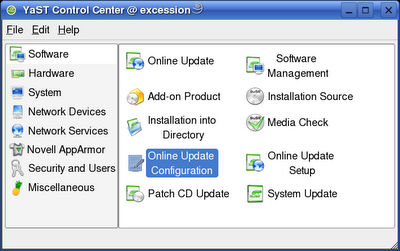
In the system tray you can see the new notification applet running.

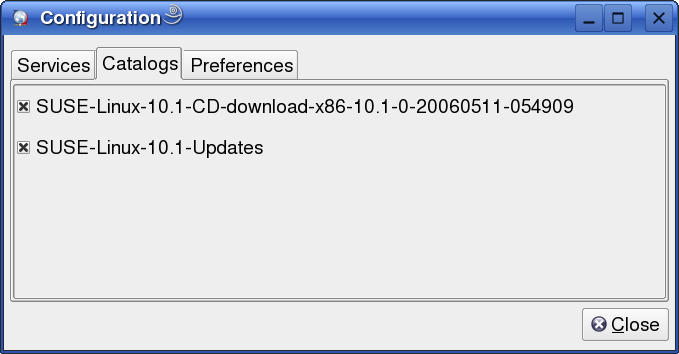
Right-click and choose configure. Now you will see three tabs, in the first 'Services' tab is the list of services ( installation sources ) you have registered. If you have a fresh installation like me you will at least have the installation media you used listed as a service. If you have configured Online Updates it will list this service as well, you will be subscribed to these catalogs.
zen-updater services & catalogs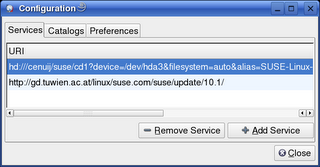
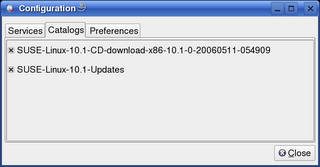
Now you will be automatically notified of any security or system updates, if there are any available the zen-updater applet will also allow you to install them.
Now that I have online updates configured I want to add a third party software repository and install libxine1 for mp3 playback in amaroK. The
packman repsoitory has libxine1 so let's add this as a service. Here is a list of
packman mirrors so you can pick one close to you. You will need to browse the mirror you want for the full URL to the repository. For example on the skynet mirror I like, the URL to the repo is http://packman.mirrors.skynet.be/pub/packman/suse/10.1/
## Update ## At Tony's suggestion here's a link to an update on using the new package management. I would urge you all to read through this as well it will provide some time saving and head scratching when it comes to the point of adding an online repository. Thanks for the suggestion Tony.Right-click on the zen-updater applet in your system tray and select 'configure'. Click on the 'Add Service' button, enter the URI in the popup, you can let the applet auto detect the service type but I will choose YUM. Give the service name 'packman', the service name acts as an identifier and also the catalog name.

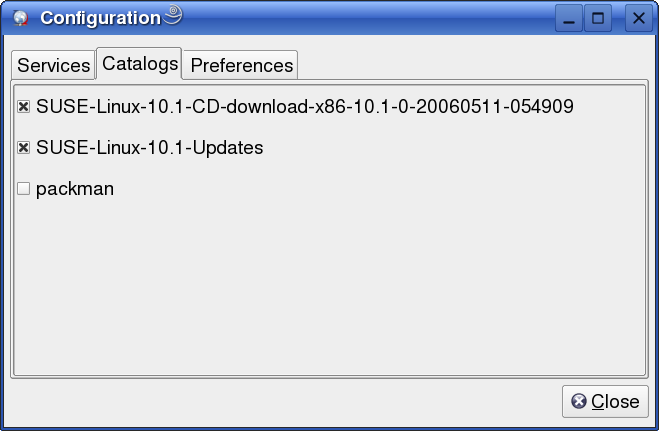
After zen-updater is finished adding the service, click on configure and go to the 'Catalogs' tab. Make sure you are subscribed to the packman catalog by checking the box if neccessary.
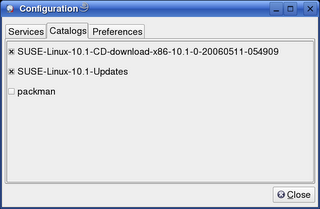
You can also use the rug command line utility to add services. As root:
rug sa --type=YUM http://packman.mirrors.skynet.be/pub/packman/suse/10.1/ packman
rug sub packman
You can use rug to install, remove software and to schedule package management tasks as well. There is much more to it so I reccomend checking out the rug manual.
After you subscribe to the packman service you may notice the zen-updater icon in your system tray has changed to indicate there are updates available for some of the software you have on your system. Click on the icon to see the list of available updates. Security and system updates are also listed in YOU.

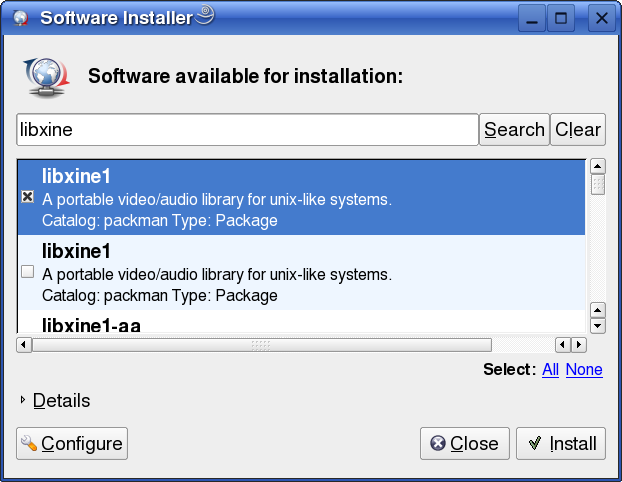
Now you can install any software from the packman repository. You can use yast software management module to install or remove software from your configured repositories or you can use the new installation tool that comes with zen-updater. To use the new tool; in the GNOME or KDE program menu go to System > Configuration > Install Software.
Do this now to install libxine1 for mp3 playback in amaroK.
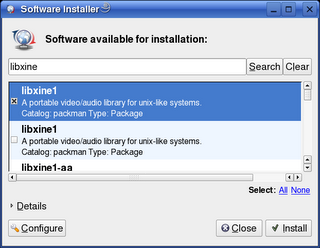
You can install the packages from the command line using rug
rug in libxine1
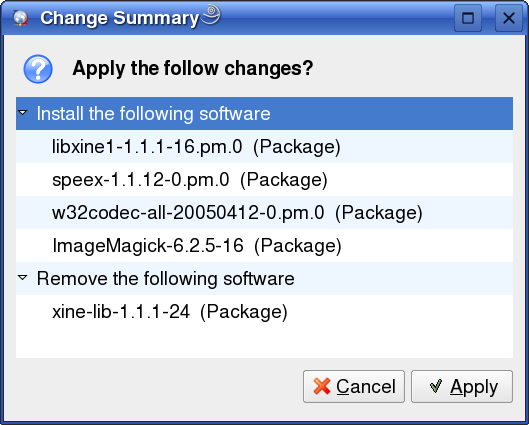
Any package dependancies will now be resolved and you may get prompted to install additional software that's needed. You may also be promted to remove conflicting software. In this case it is neccessary to remove xine-lib and also add additional packages.
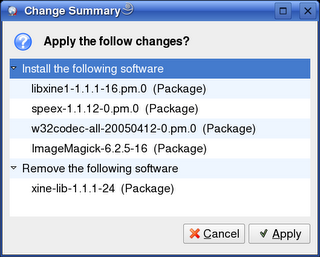
Click apply. libxine1 software will now be downloaded and installed on your system, and you will now be able to enjoy mp3 playback in amaroK!
For improved video playback support repeat the installation procedure for the packages xvid, divx and mad. These packages are all available from the packman repository.
Additional Software RepositoriesThere are additional software repositories you may be interested in for example Guru repository (
Yaloki) builds an extensive number of packages for SUSE, including updates to software that might not be available from the official SUSE distribution, for example SUSE 10.1 ships with amaroK 1.3, yaloki has amaroK 1.4 with improved iPod support.
Here is a list of some usefull repositories and the console command to add them as a service
Packman sourcehttp://packman.inode.at/suse/10.1/
rug sa --type=YUM http://packman.inode.at/suse/10.1/ packman
Guru (Yaloki) Sourcehttp://ftp.gwdg.de/pub/linux/misc/suser-guru/rpm/10.1/RPMS/
rug sa --type=YUM http://ftp.gwdg.de/pub/linux/misc/suser-guru/rpm/10.1/RPMS/ guru
mozilla ( firefox, thunderbiord, seamonkey )ftp://ftp.gwdg.de/pub/linux/suse/ftp.suse.com/projects/mozilla/10.1
rug sa --type=YUM ftp://ftp.gwdg.de/pub/linux/suse/ftp.suse.com/projects/mozilla/10.1 mozilla
Next on SUSE DiarySUSE Linux 10.1 is the first Linux disrto to ship with XGL. I'll show you how to setup XGL for that *drool* must have eye candy in both GNOME and KDE.
Additional HelpAdditional help for SUSE 10.1 can be found on the
mailing lists or alternatively you can drop by the IRC chat channel #suse on freenode IRC network. If you are using KDE in SUSE 10.1 then the IRC chat client Konversation is already configured to connect to the #suse channel on freenode IRC network.
digg this!